
Installation and connection
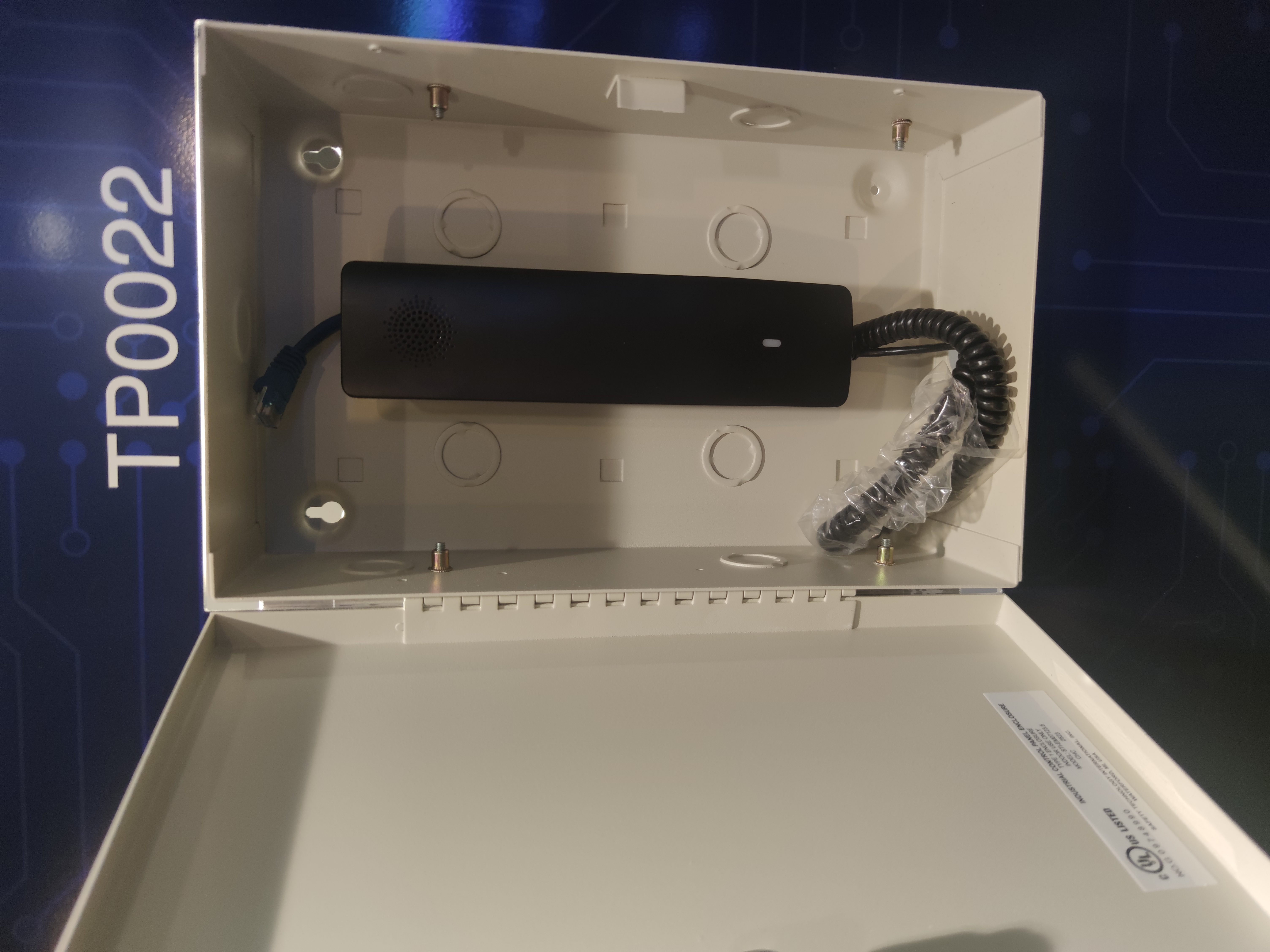
The TP0022 is a POE IP phone for machine rooms, powered by a gateway (TGxxxx) or a 5 VDC power supply:
Accessing the TP0022 configuration
Once the phone connects to the TG1xxx, it receives an IP address from the router. Then, pick up the handset and:
-
Type **47# on the phone to get its IP address.
-
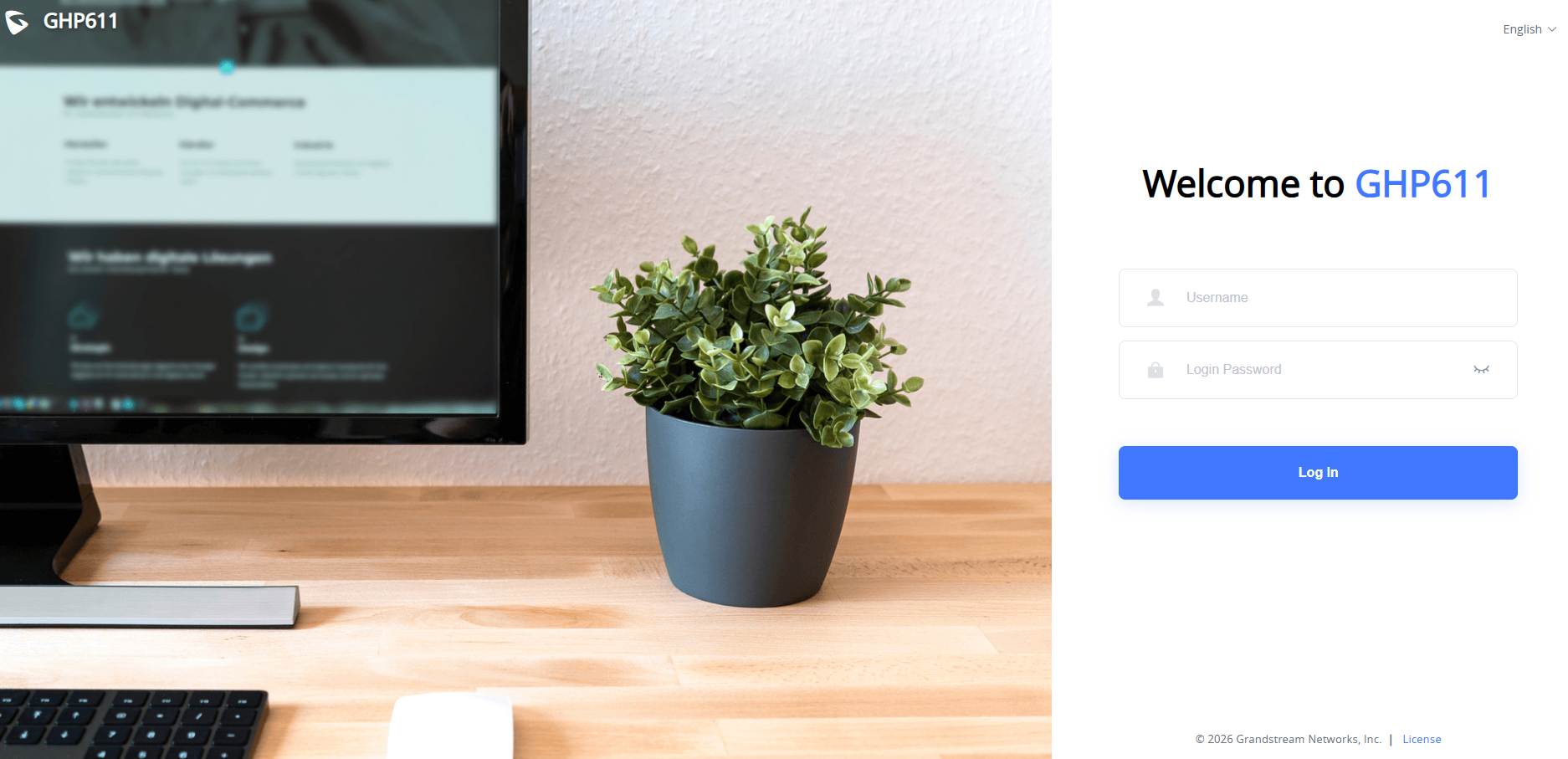
Enter that IP address in your browser to access the phone menu using a LAPTOP and type username and the password (That you have defined).
-
The phone generates a code to enter using the handset button, then prompts you on your web browser to enter the new password.
Configuration
Depending on the device's firmware version, there are two ways to configure a TP0022: learn system configuration and non-learn system configuration:
|
Device type |
Learn system firmware version |
Non-learn system firmware version |
|---|---|---|
|
TG11xx and TP1002 |
1.0.11 and above |
Below 1.0.11 |
|
Router |
2.3 and above |
Below 2.3 |
Note that the TP0022 is compatible in both cases.
1 - Configuration with a learn system :
Configure the TP0022 as follows:
-
Access the phone configuration via a web browser from a laptop and enter the FTP credentials. Go to upgrades and provisionning → Config File and fil the following ftp credential in configure network section like this:
Configure via Network: ftp.thundersupervisor.lan
Config Server Username: GHP611
Config Server Password: $V1d4tech123!
-
Connect the phone to the TG11xx or TG12xx network using an available PoE port.
-
On your supervisor screen, when the TP0022 shows an orange status, click the registration button and wait 20 minutes.
-
The phone will be provisioned and appear on the supervisor with a green status.
-
Make a call with the phone to confirm it works properly.
Notice: To call a cabine, go to the supervisor screen. In the first menu (home button), open the cabine phone parameter and note the number at the extension line. Enter this number on your TP0022 phone.
2- Configuration with non learn system:
In this mode:
-
Your phone must be provisioned by the Vidatech team before shipment. If not, contact Vidatech technical support at support@vidatech.ca / +1 418 476 4602.
-
Connect the phone to a TG1xxx PoE port and get the IP address by dialing **47# on the phone
-
From your computer, connect to the phone via a web browser using the IP address and enter the SIP registration parameters.
-
Sync with Vidatechstorm from the supervisor.
Troubleshooting
LED light meanings on the TP0022:
|
TP0022 LED Color meaning |
Event |
|---|---|
|
Off |
Idle |
|
Solid Green |
Dialing / Connected / Calling |
|
Slow Flashing Green |
Hold / Held |
|
Fast Flashing Red |
Incoming Call |
|
Slow Flashing Green |
New Voicemail |
|
Slow Flashing Yellow |
No Available Account |
|
Slow Flashing Red |
No Available Network |
|
Solid Yellow |
Provisioning |
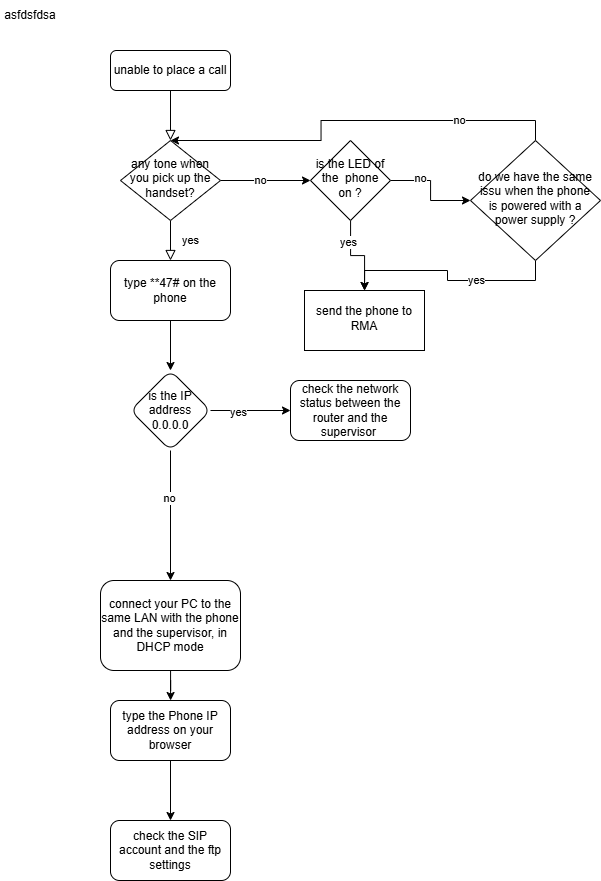
Case 1: unable to place a call with the phone:
factory reset:
To restore the TP0022 phone via keypad, enter the code **37*{keypad password}#. The default password is 123.