
If you have an internet connection, we strongly recommend updating your Thunder Emergency Communication System to the latest version. If you’re currently offline, you can skip directly to the configuration step and perform the update later when a connection becomes available.
Test the Internet Connection
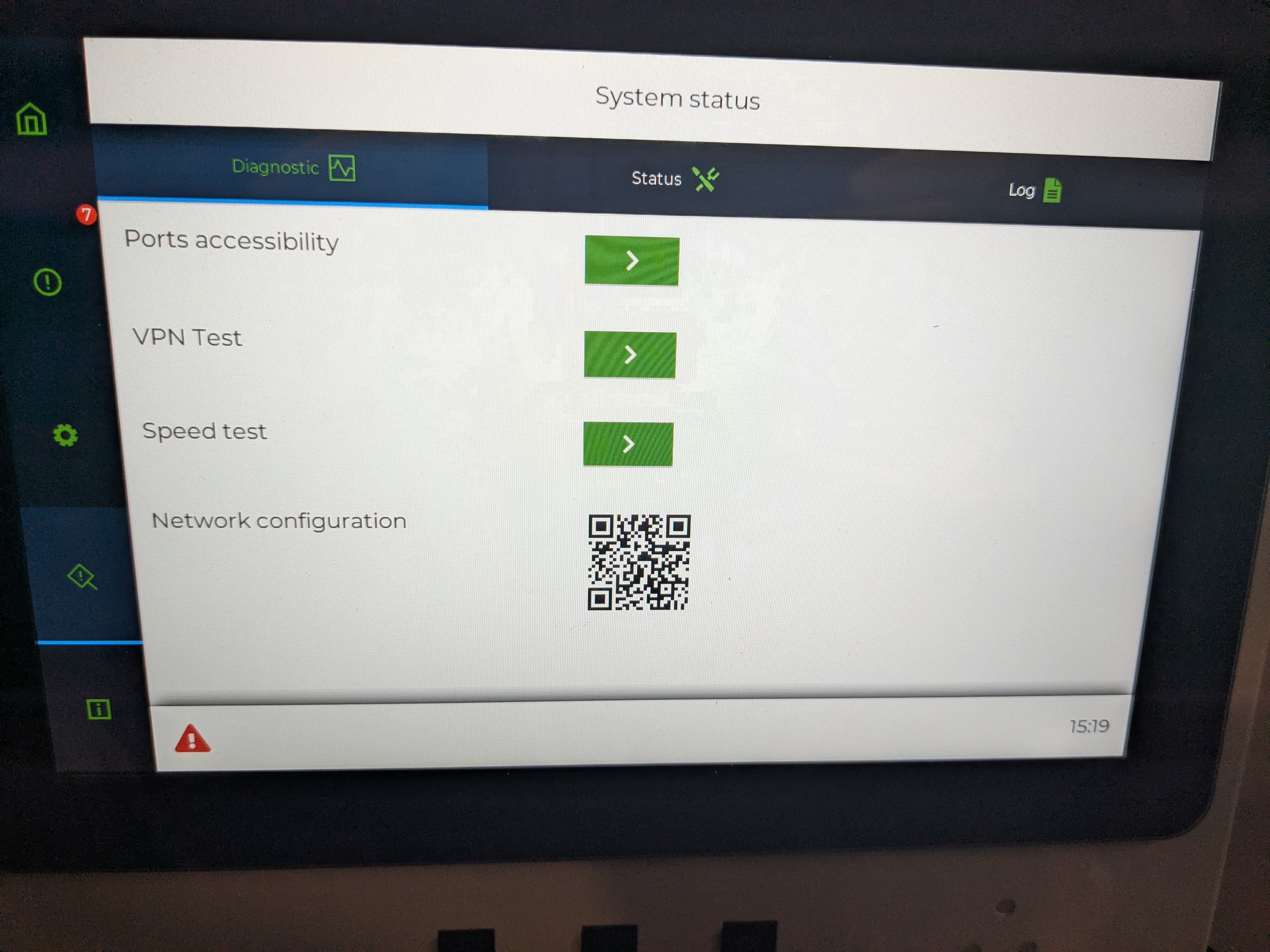
Perform the following tests to validate the internet connection:
-
Port Accessibility Test (Troubleshoot)
-
VPN Test (Troubleshoot)
-
Speed Test (Troubleshoot)
Update the Supervisor
To update the Supervisor, go to Settings and press the Self-update button. The Supervisor will check the remote server for available firmware updates.
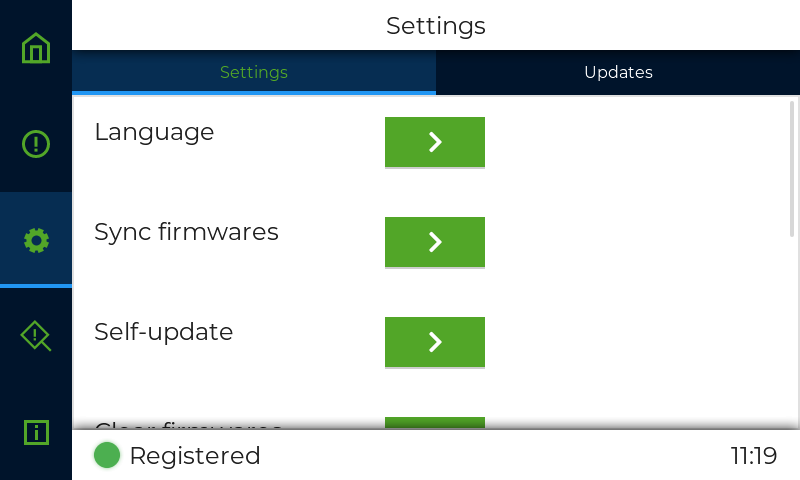
If a new firmware version is available, the Supervisor will download it and begin the update automatically.
If the Supervisor is already running the latest firmware version, a prompt will appear. You can then choose either to proceed with the update anyway or to cancel the operation.
During the update process, the Supervisor will reboot automatically. The entire procedure can takes up to 3 minutes.
Update a Thunder Phone
To update an elevator phone (TC4340, TC7082, TC1082, TC1582), first synchronize the firmwares. This will download the elevator phone firmwares from the server to the Supervisor.
Only the firmwares of the devices that are part of the building configuration are downloaded. Make sure the device you want to update is part of the building configuration.
See: Device Discovery
Once the firmware files have been downloaded, go to the Updates tab.
You will notice that two versions are displayed:
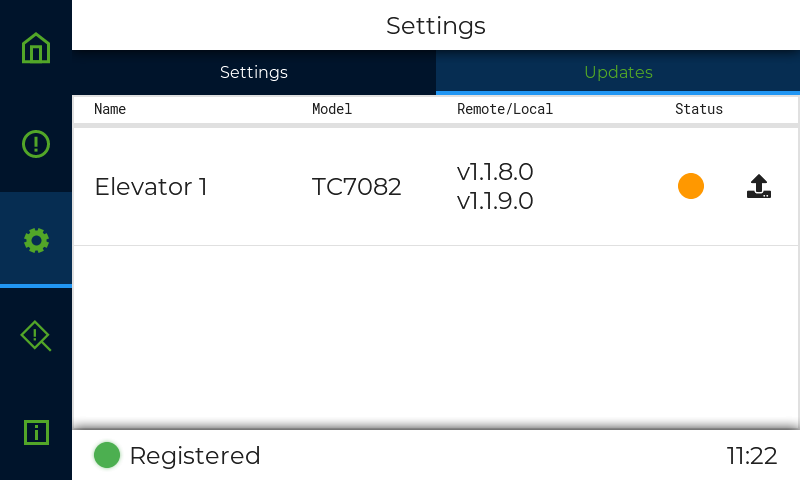
Top version: the current firmware version installed on the device (remote).
Bottom version: the firmware version downloaded from the server (local).
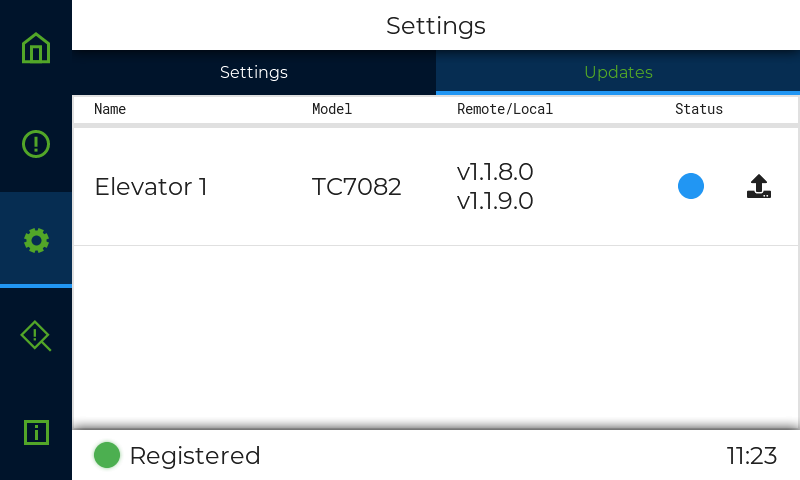
To update the device, press the Upload icon. The status indicator will turn to blue to indicate that an update is in progress.
After the update command is sent to the device, a 10-minute countdown begins.
-
If the device does not respond within this time window, the update is considered failed.
-
If the device responds but reports a firmware version different from the expected one, the update is considered failed.
-
If the device responds and reports the expected firmware version, the update is considered successful.
Status indicator color meaning:
🟠 The device is not up to date
🔵 The device is updating
🔴 The update failed
🟢 The device update is up to date