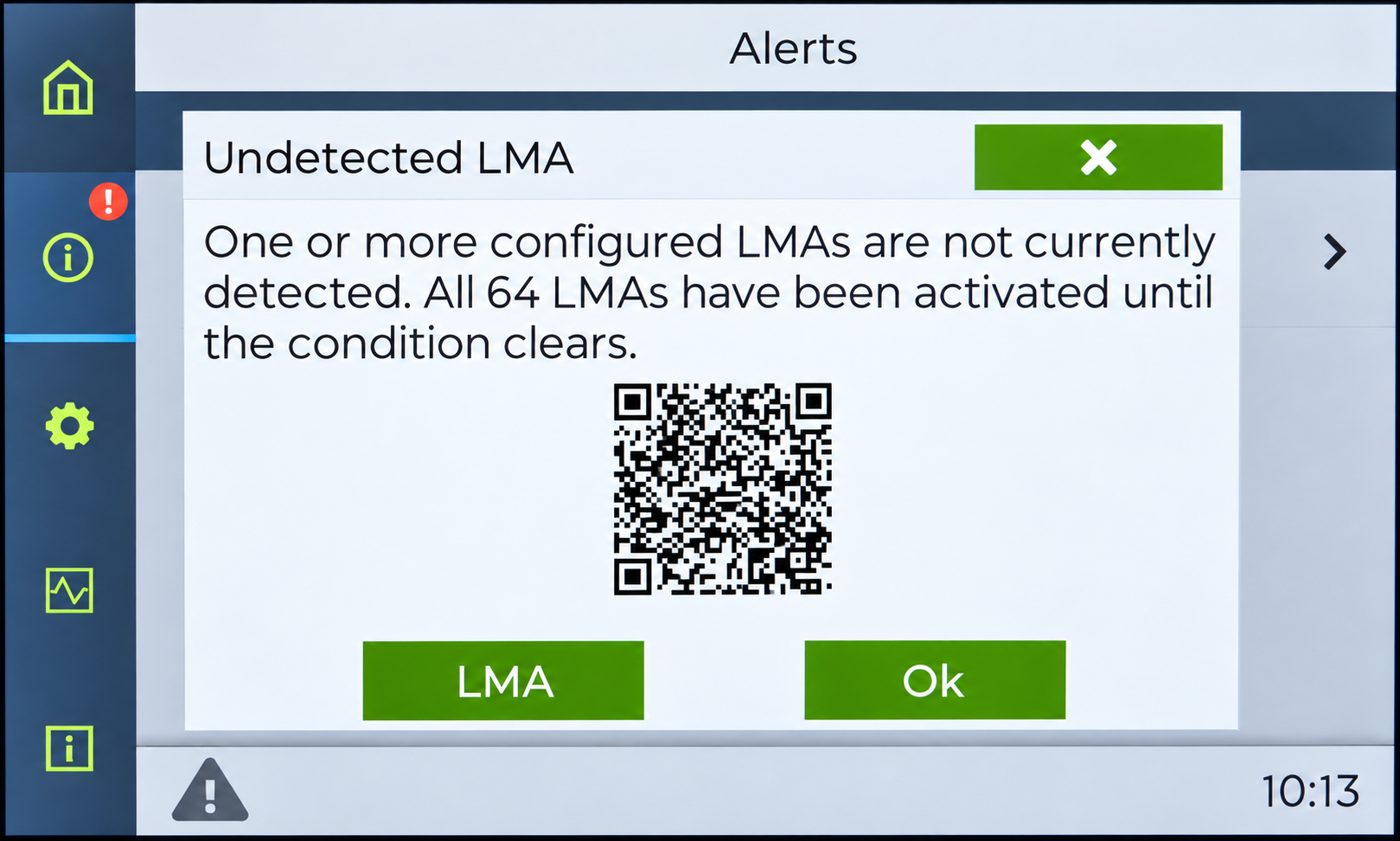
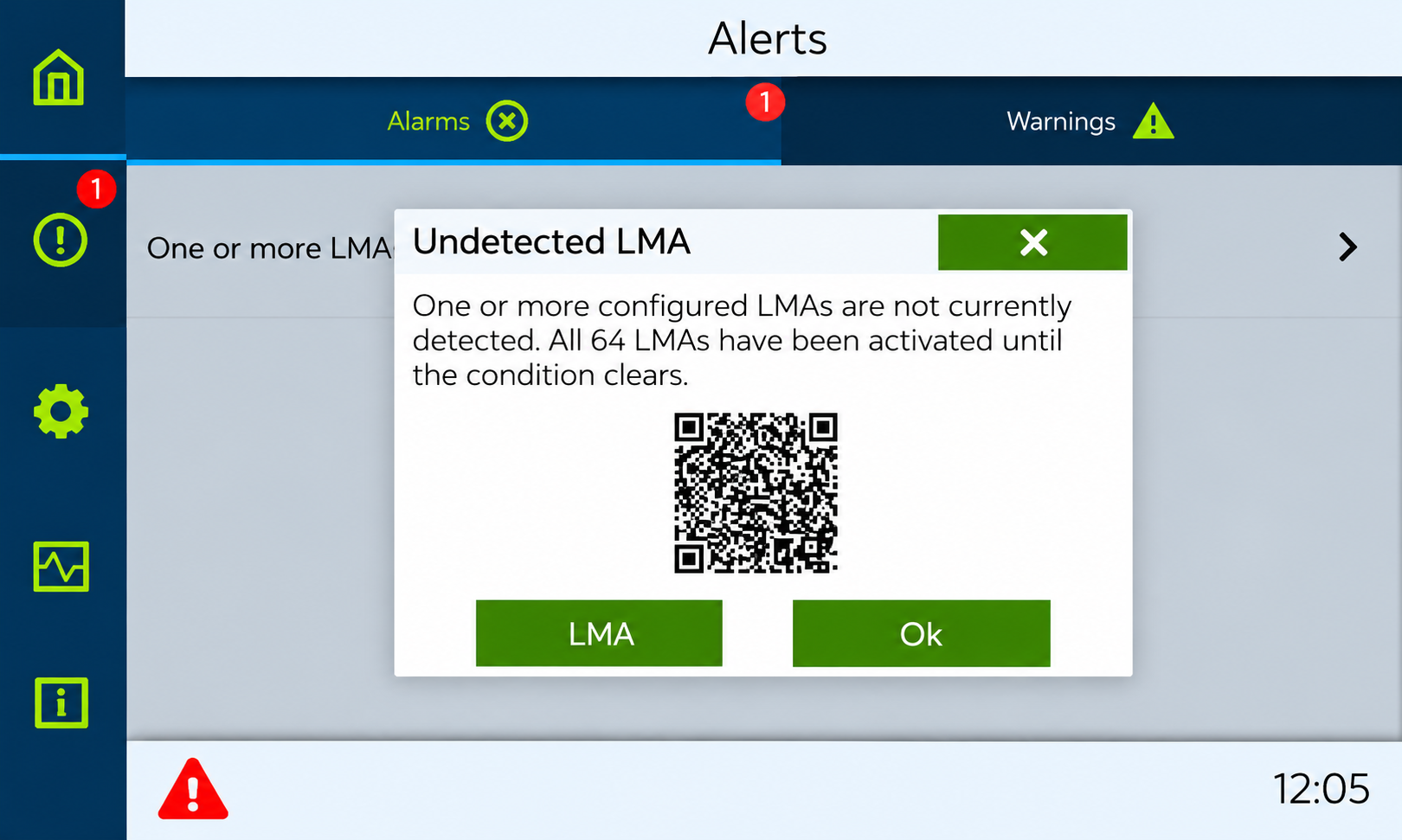
The supervisor displays an Undetected LMA alert when one or more configured Line Monitoring Alarms (LMAs) cannot be detected. Follow the steps below to check the wiring and verify that each Thunder Phone is associated with the correct LMA.
When an LMA is not detected, the supervisor displays an error and activates the other configured LMAs, if any are present. Resolve the detection issue before returning the system to service.
Important: An Undetected LMA alert does not necessarily mean the LMA is defective. It can also occur when a Thunder Phone is assigned to an LMA port that has no physical LMA connected.
Low-Rise systems (TG1132 / TG1164)
The following procedure applies to Low-Rise supervisors only.
Step 1 — Verify LMA Wiring
Connect the LMA to the correct Lobby Station port on the TG1132 or TG1164. If the system has only one LMA, connect it to port 1. Check for loose, damaged, or disconnected wires.
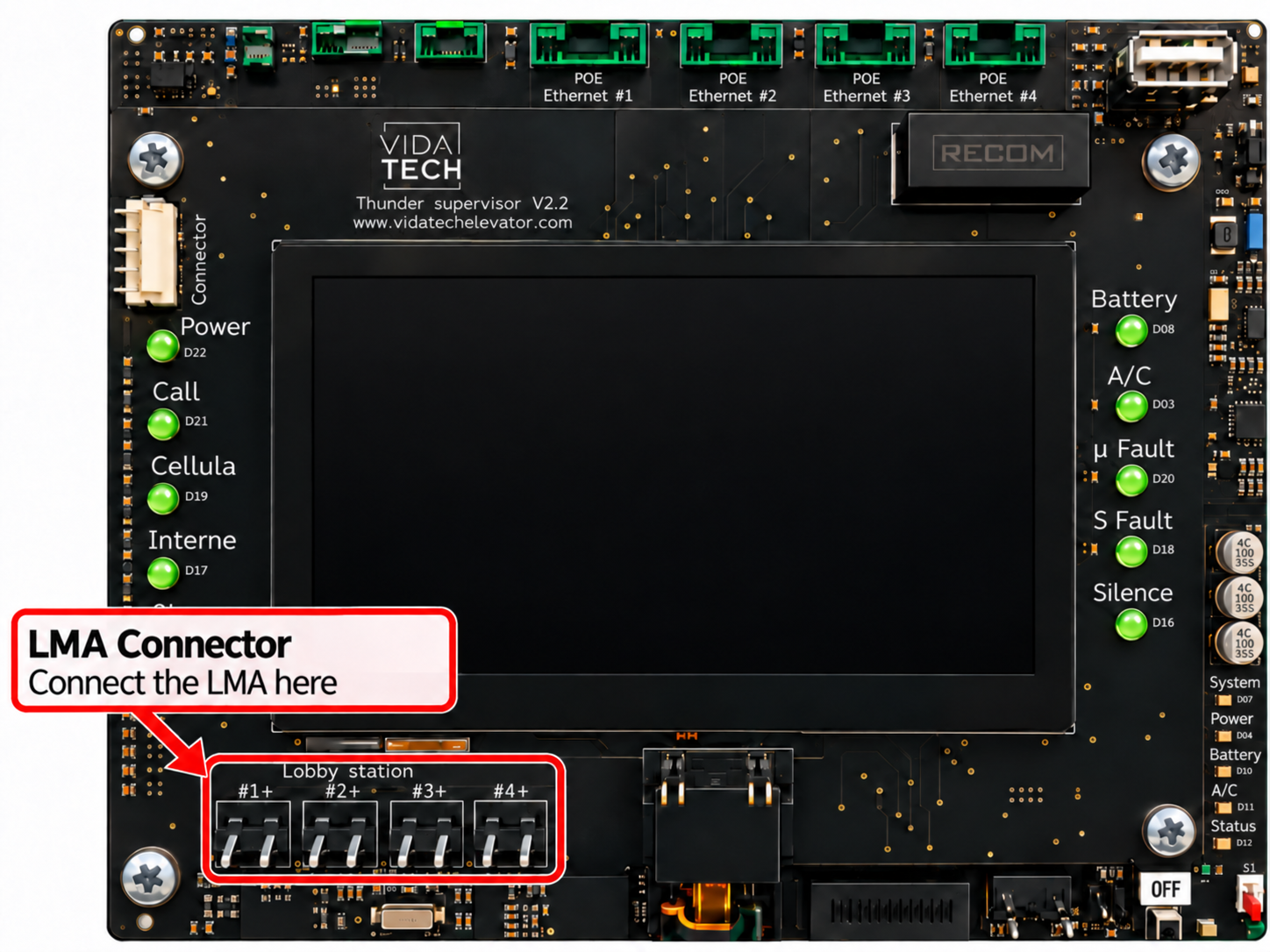
Verify the wiring using the installation diagram. The TA0000 alarm input is rated for 12–24 VDC and is not polarity-sensitive.
For installation diagrams, see TA0000 — Installation and Wiring.
Step 2 — Verify LMA Configuration
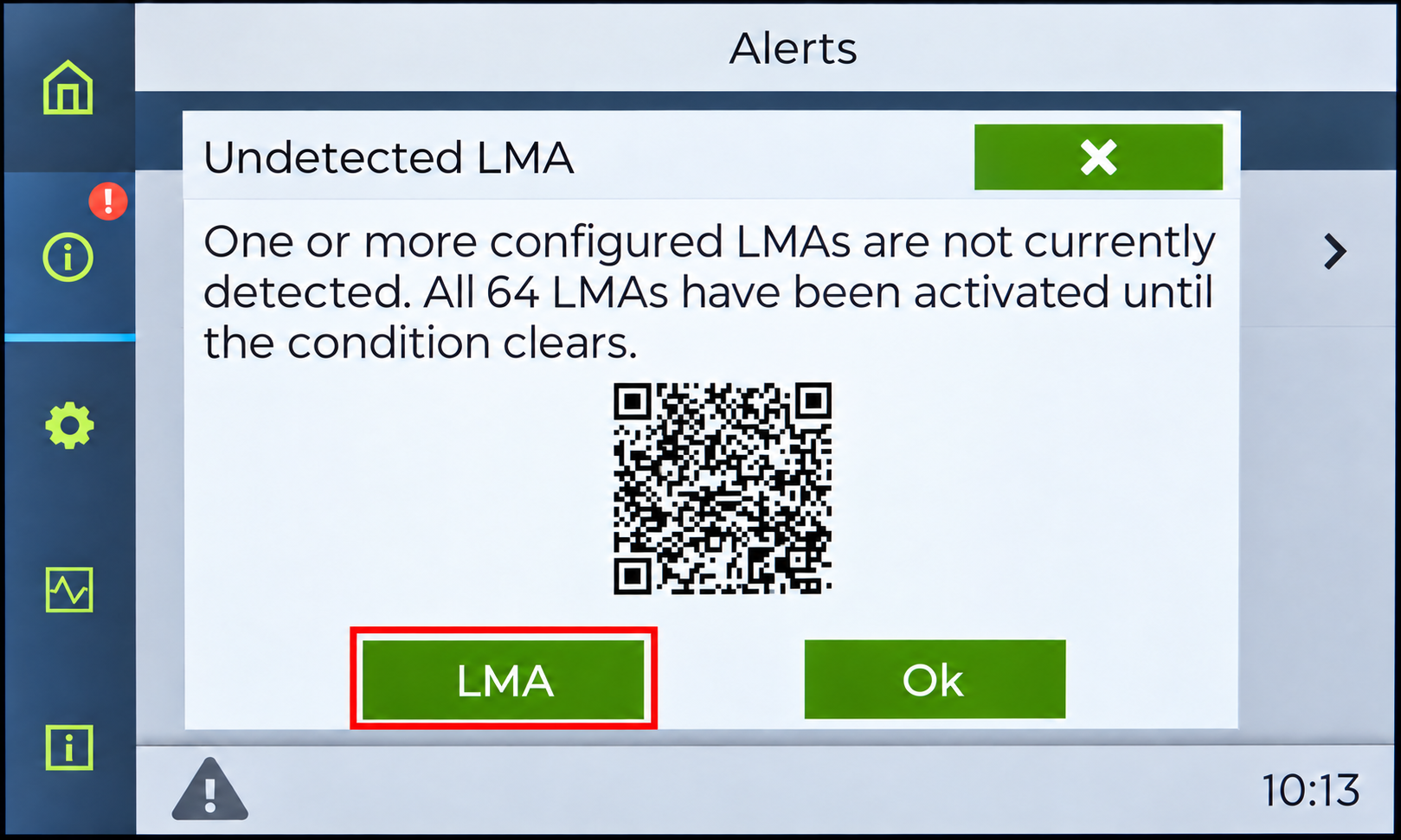
Check whether the error is still displayed. If it persists, select LMA in the alert window to open the LMA configuration screen.
The LMA configuration screen shows the configured LMAs and their status. In this example, LMA 1 is connected to port 1, while LMA 2 shows a warning because no TA0000 is connected to that port. However, three Thunder Phones are assigned to LMA 2. This incorrect association causes the detection error. The three phones must be reassigned to LMA 1.
Select the gear icon beside LMA 1 to manage its associated Thunder Phones.
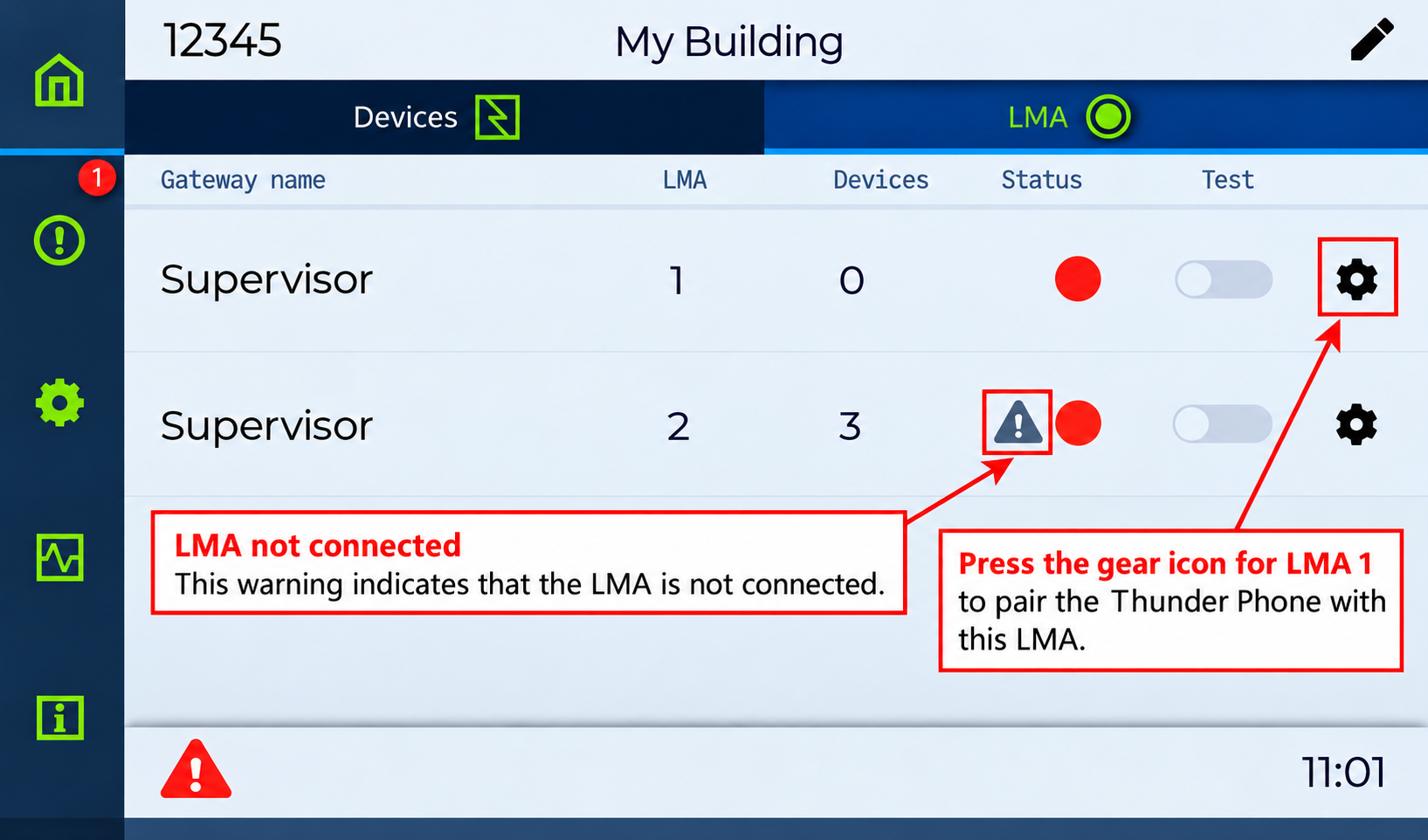
In this example, three Thunder Phones must be linked to LMA 1. Select the + icon beside each phone in Available devices to move it to Linked devices.
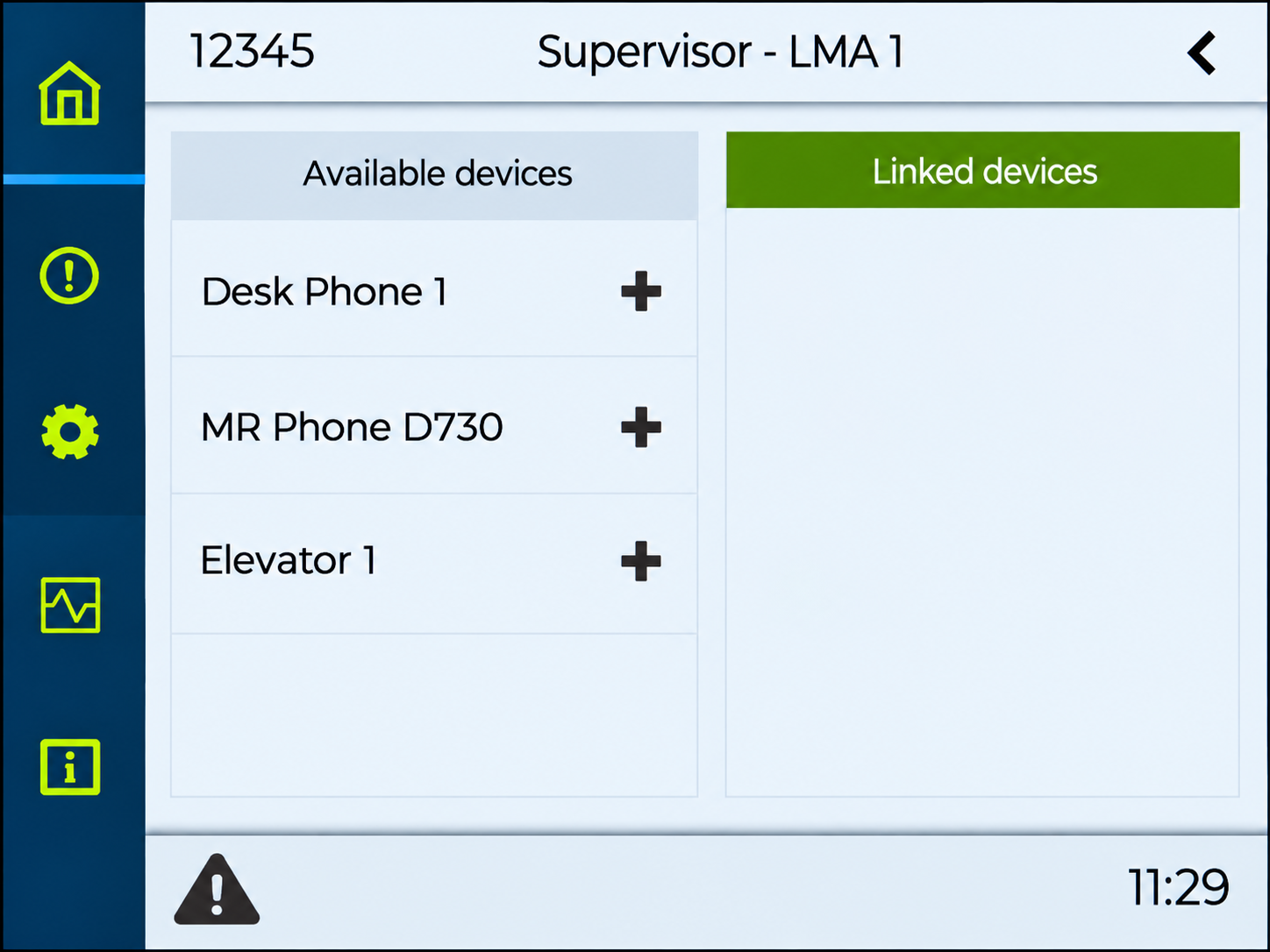
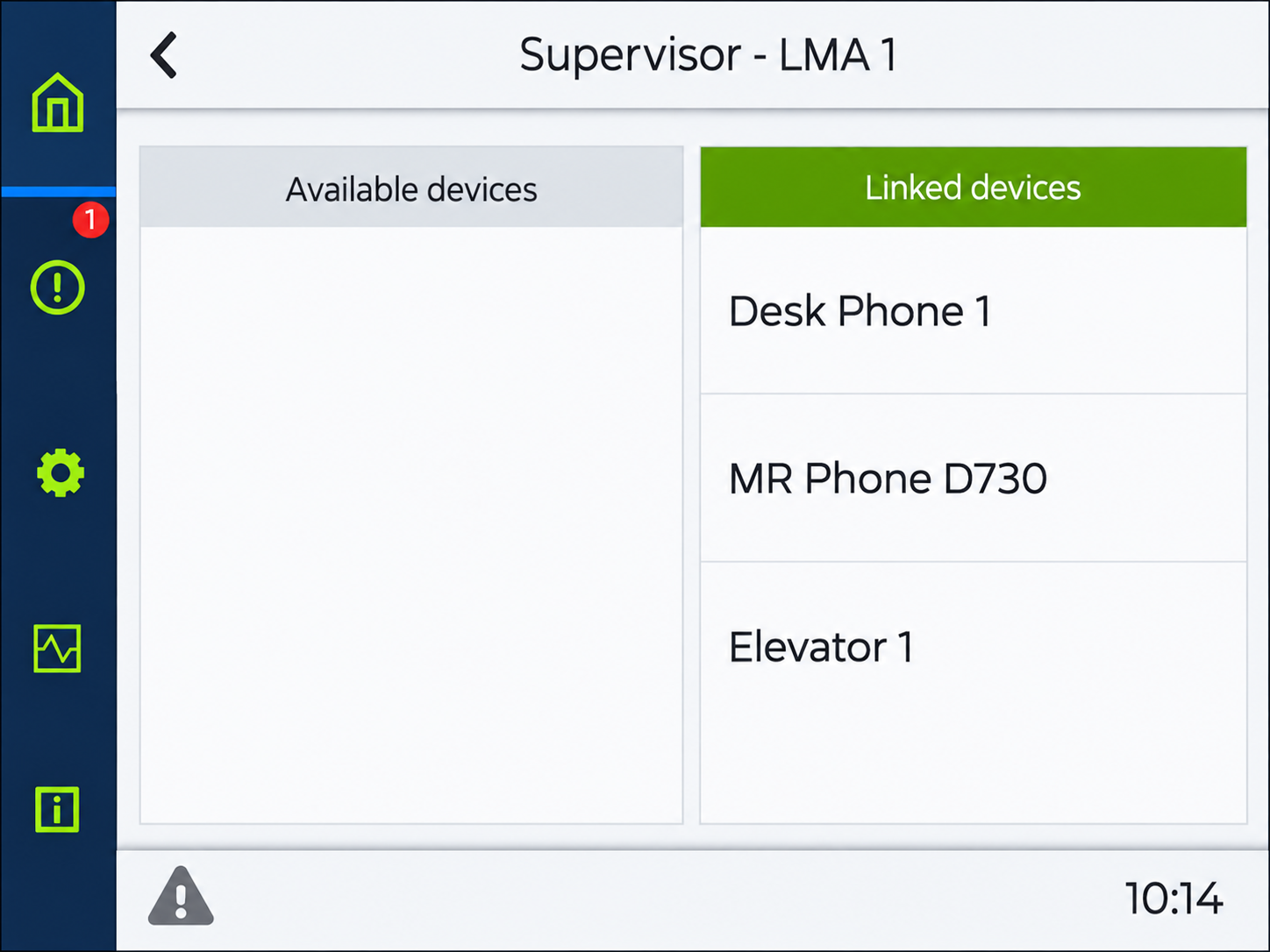
Confirm that all three Thunder Phones appear under Linked devices for LMA 1.
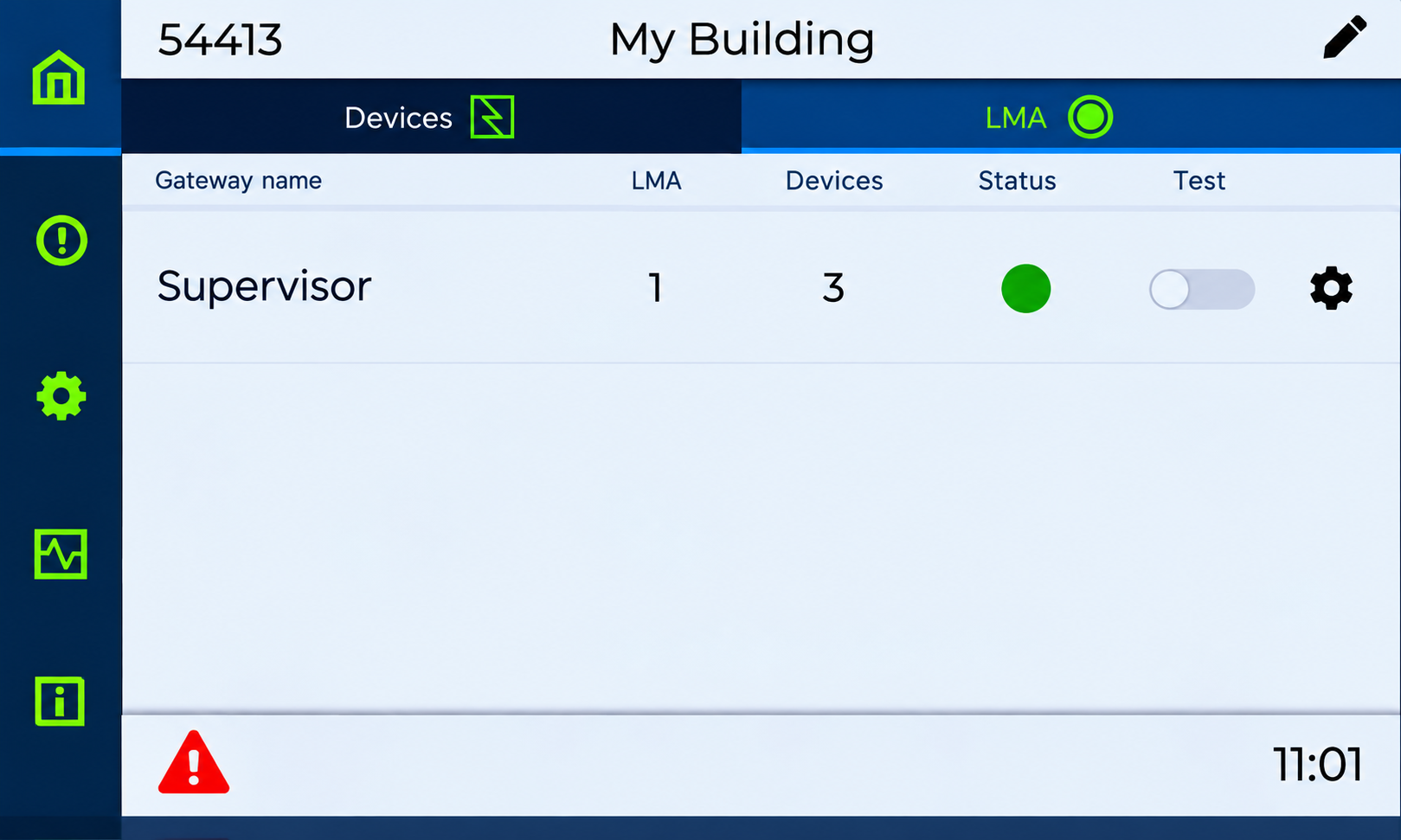
Return to the LMA status screen. Confirm that LMA 1 displays a green status indicator and that the undetected LMA error has cleared.
High-Rise systems (TG1232 / TG1264)
In a High-Rise system, the TA0000 LMA connects to a TG1232 or TG1264 gateway, and its associated Thunder Phones are configured from the TP1002 supervisor. An Undetected LMA alert can result from incorrect wiring or from a Thunder Phone being assigned to the wrong LMA port or gateway address.
Step 1 — Verify LMA Wiring
-
Locate the TG1232 or TG1264 gateway to which the TA0000 LMA should be connected.
-
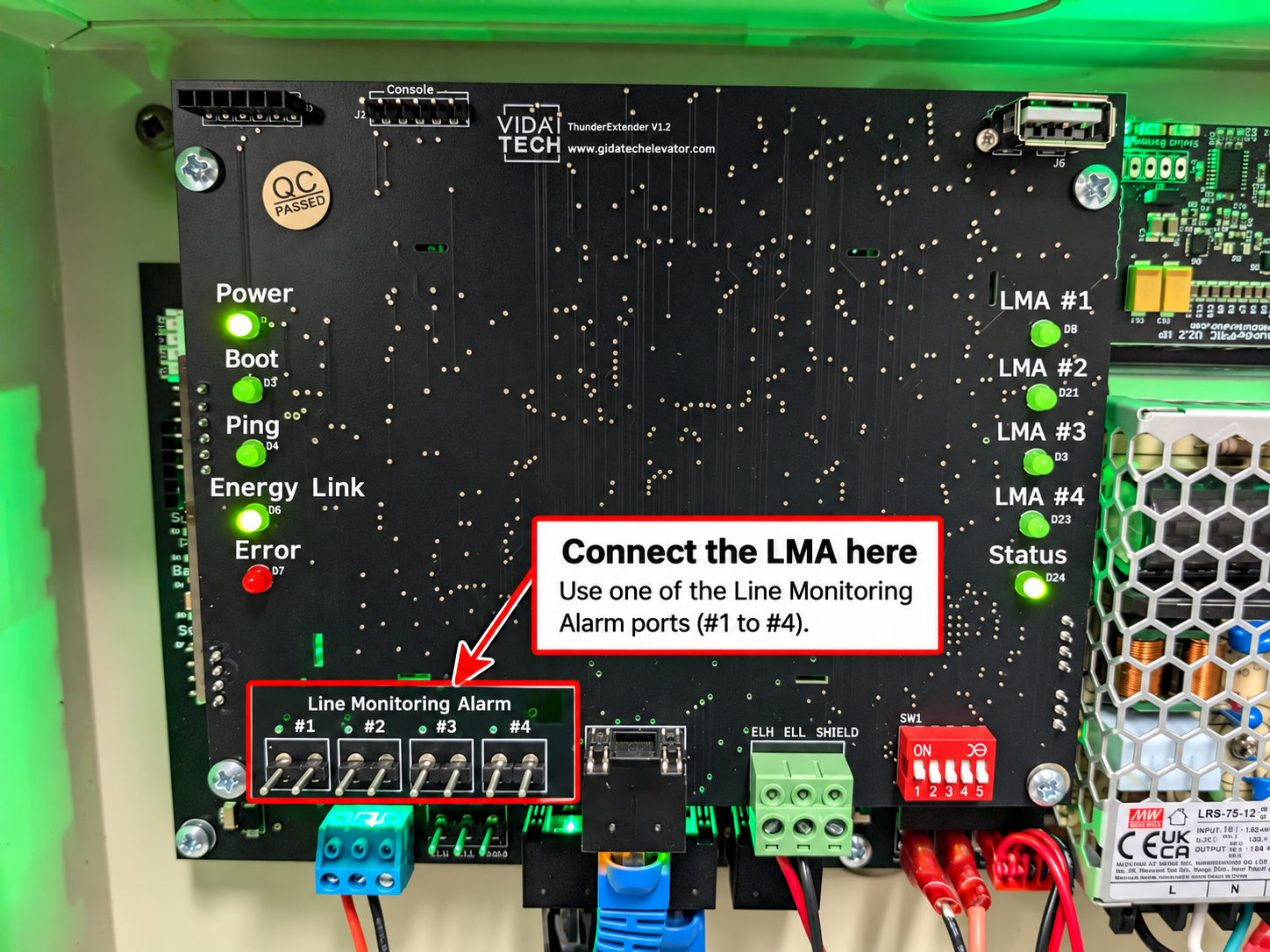
Confirm that the TA0000 alarm input is connected to one of the gateway's four LMA ports (1–4).
-
Identify and record the port number (1–4) used by the LMA. Check that all wires are securely fastened and are not broken, loose, or disconnected.
Verify the wiring using the installation diagram. The TA0000 alarm input is rated for 12–24 VDC and is not polarity-sensitive.
For installation diagrams, see TA0000 — Installation and Wiring.
Step 2 — Verify the Gateway Physical Address
-
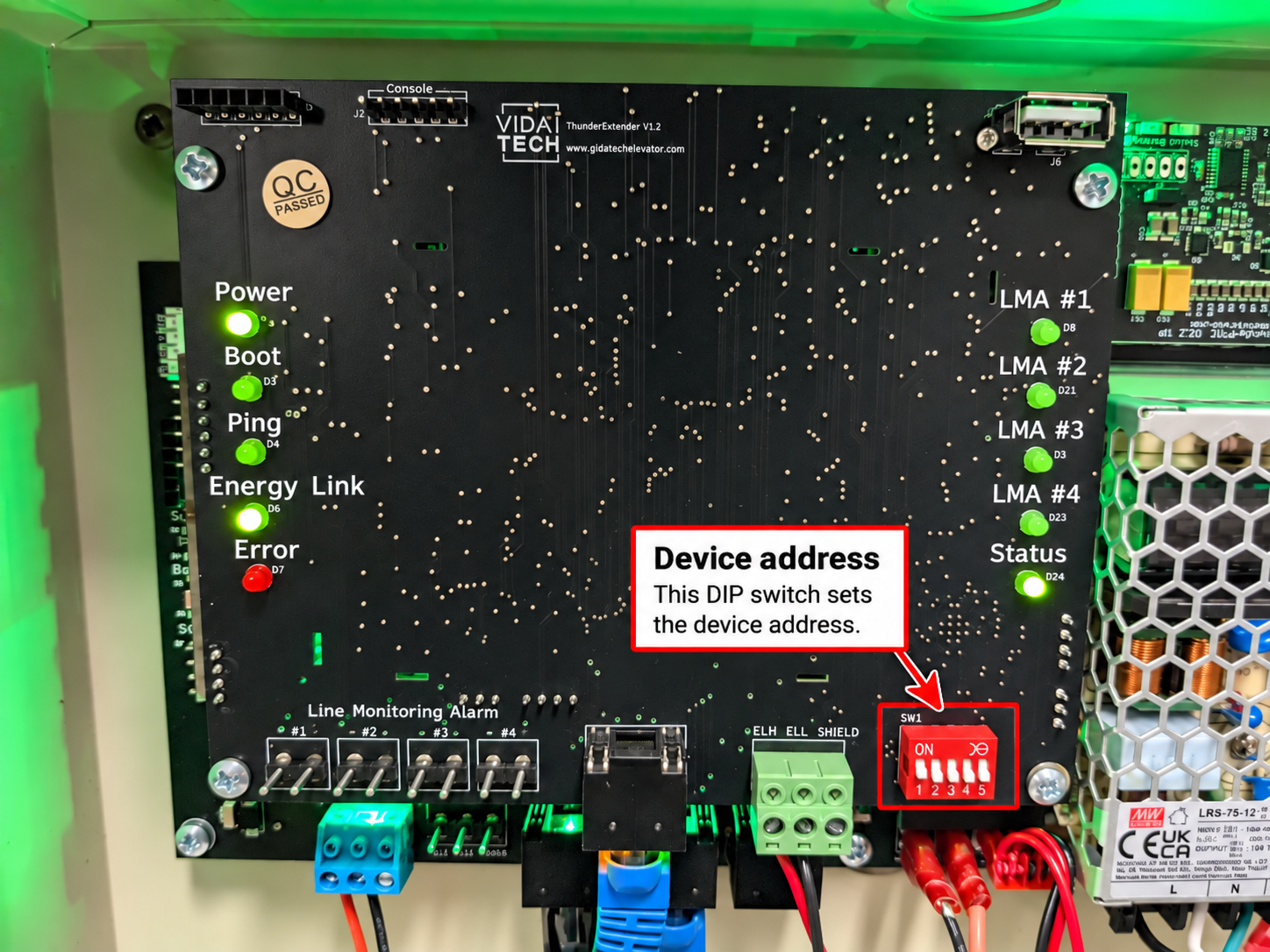
Locate the physical-address DIP switches on the TG1232 or TG1264.
-
Check the gateway's physical address using its DIP-switch settings. Every TG1232 or TG1264 must have a unique physical address, starting at 1.
Step 3 — Verify the LMA Configuration on the Supervisor
On the supervisor, open the alert and select LMA to access the LMA configuration screen.
By default, Thunder Phones are associated with LMA Gateway Address 0, which represents the TP1002 supervisor in a High-Rise system. The TP1002 does not provide an LMA output. LMAs must instead be connected to the TG1232 or TG1264 gateways, whose physical addresses start at 1.
In the example below, three Thunder Phones are associated with gateway address 0 (the TP1002). Because the supervisor cannot drive an LMA, this association causes a detection problem. Each phone must be reassigned to an LMA physically connected to the appropriate High-Rise gateway.
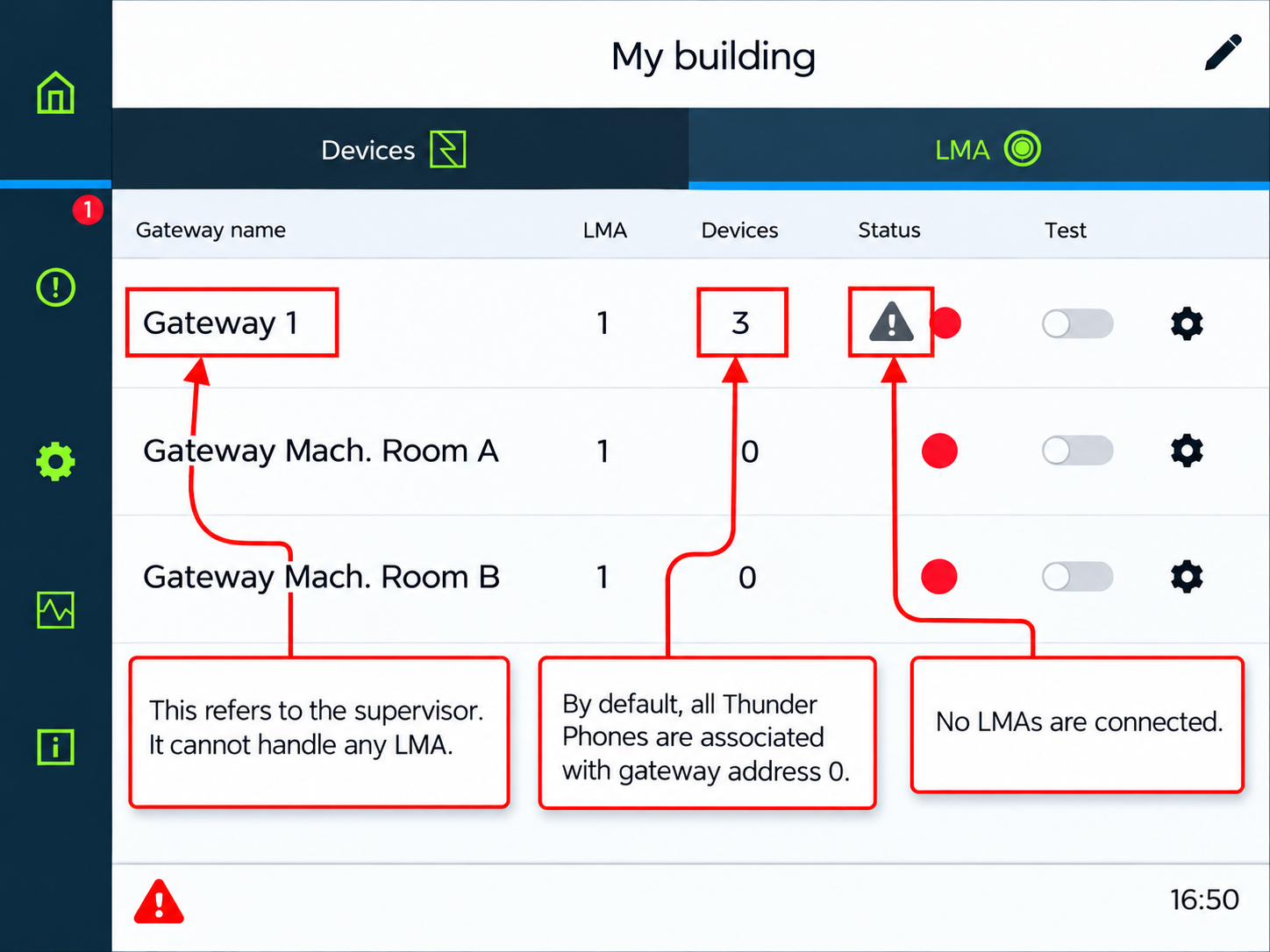
Select the gear icon beside the LMA to which you want to assign a Thunder Phone. On the device-association screen, select the + icon next to the phone in Available devices to move it to Linked devices.
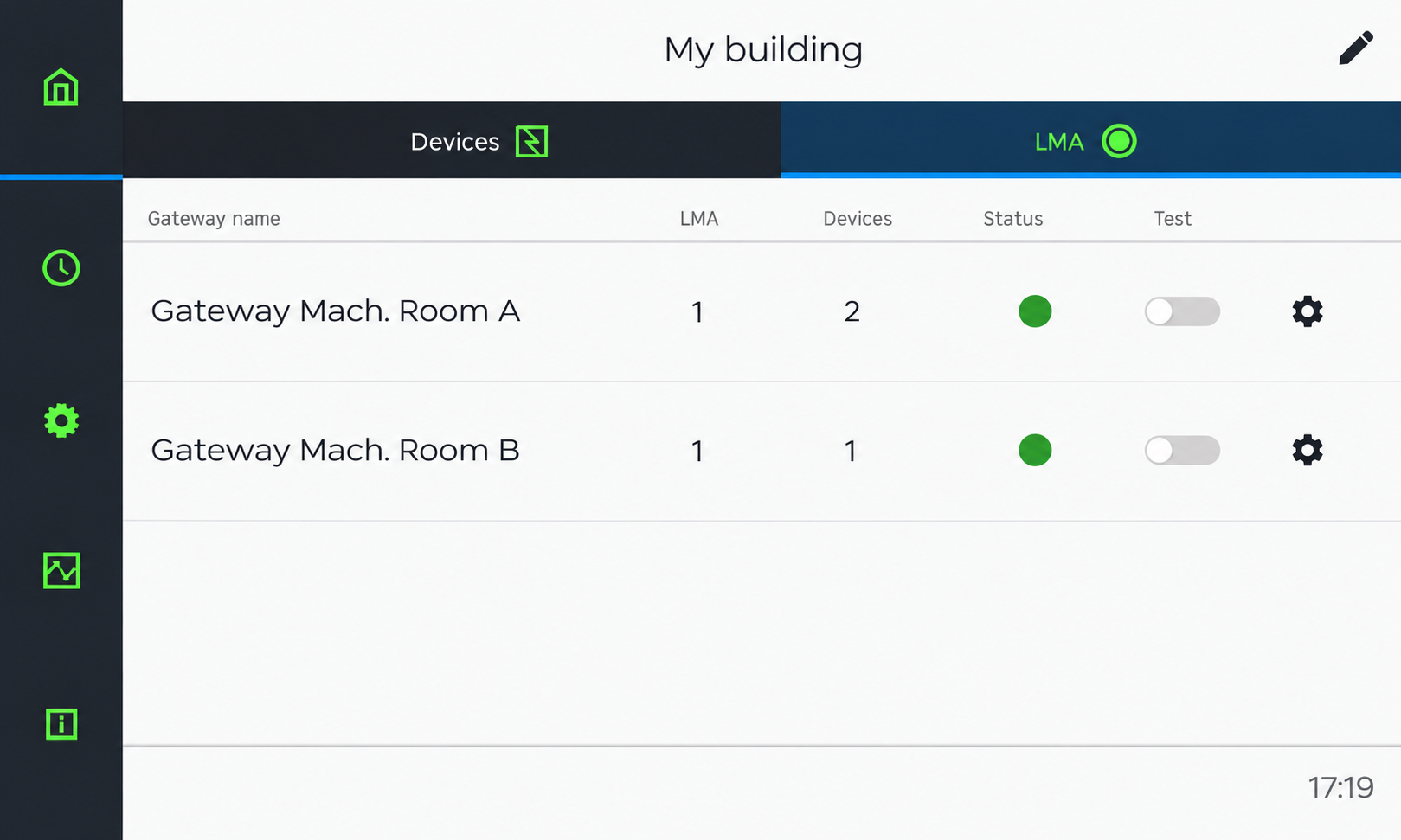
Example: The system has two gateways, Machine Room A and Machine Room B. Associate Cabin 1 (TC7082) with the LMA connected to Machine Room A. Associate Cabin 2 (TC7082) and the machine-room phone with the LMA connected to Machine Room B. Confirm that each association corresponds to the intended gateway and physical LMA port.
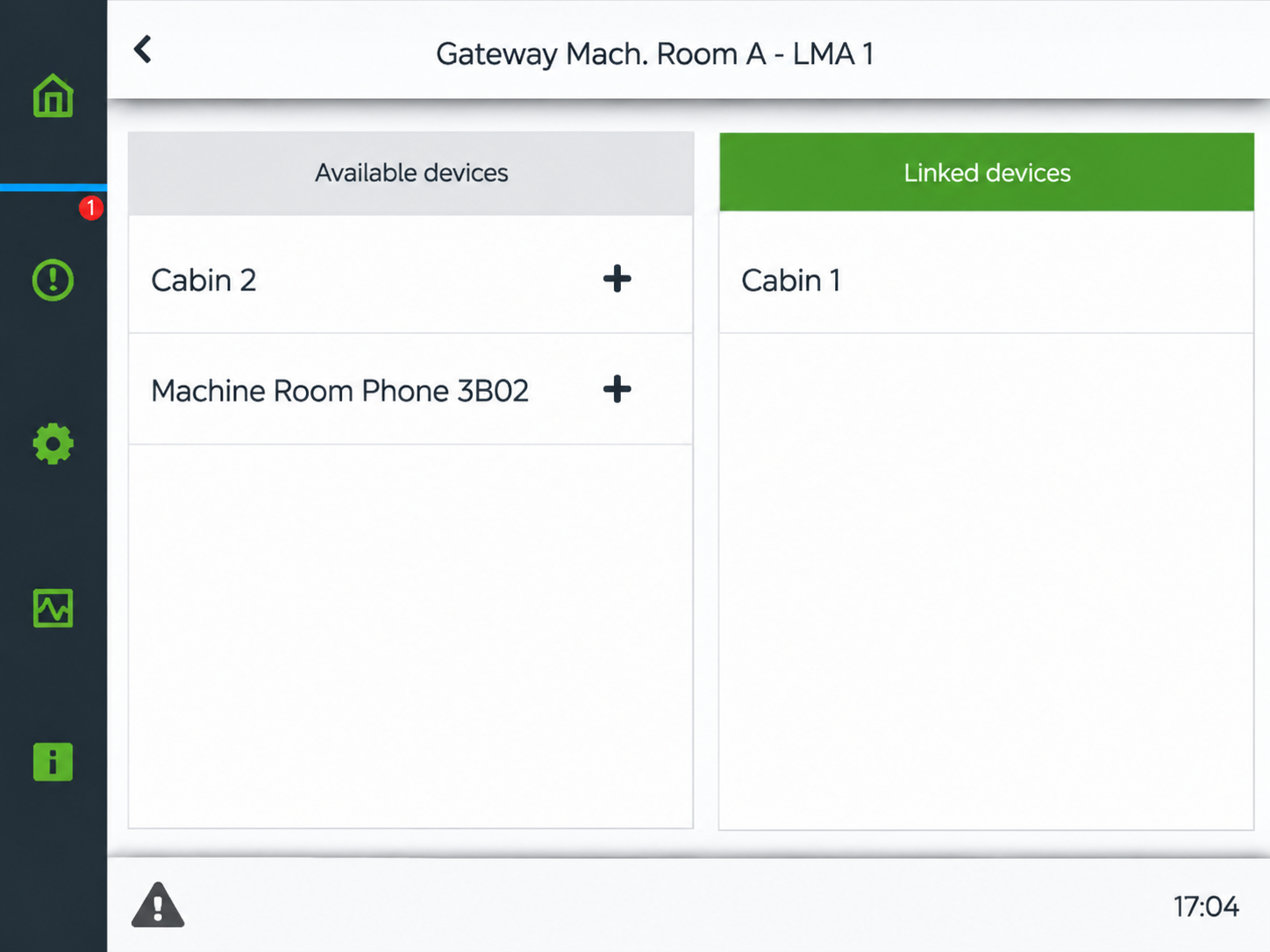
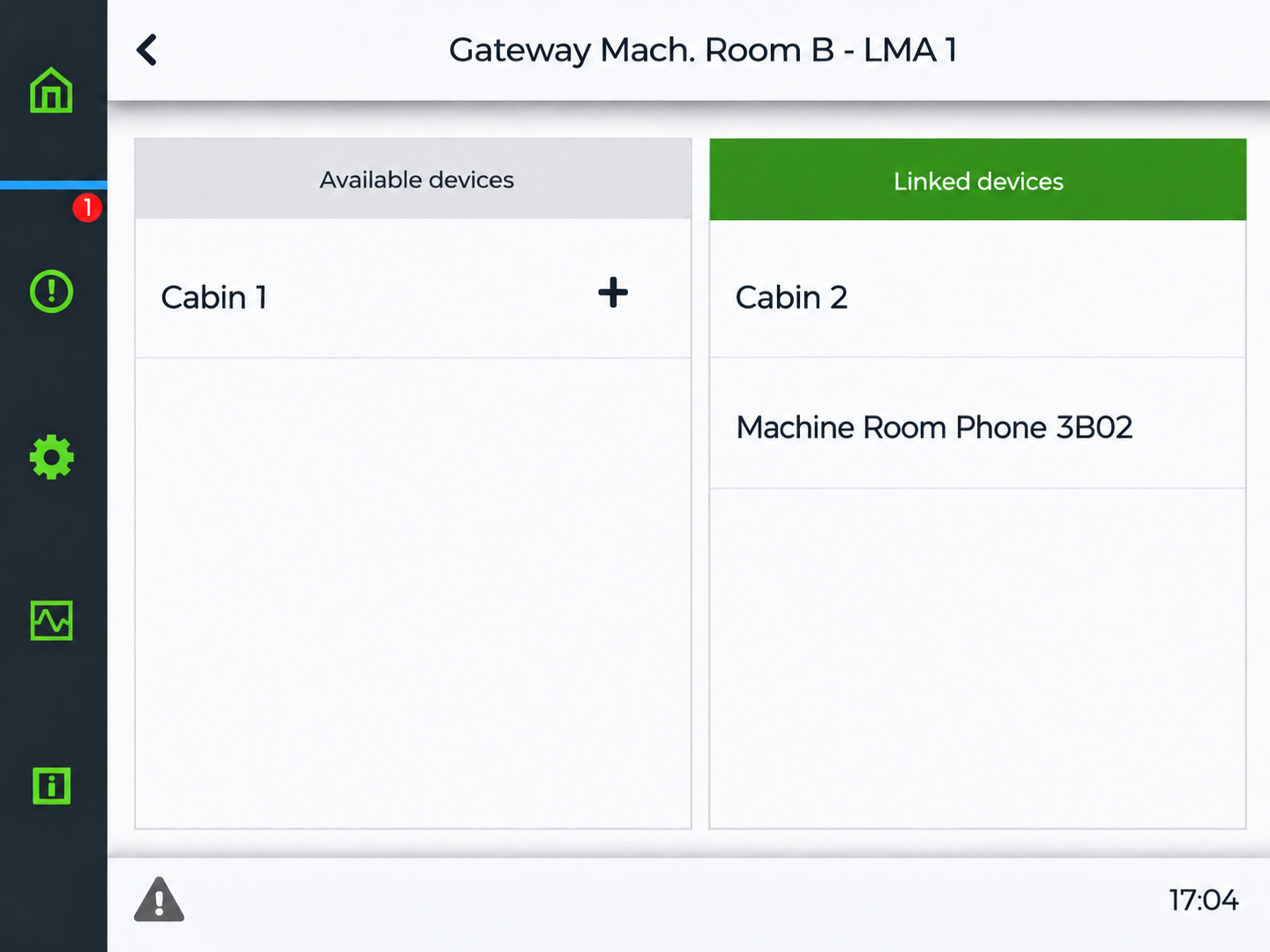
After assigning the Thunder Phones, return to the LMA overview. Confirm that each expected LMA displays a green status indicator and that the Undetected LMA alert has cleared. If the alert remains, recheck the port number, the gateway's physical address, the wiring, and the phone-to-LMA associations.