
Follow the troubleshooting steps below to resolve issues with your LULA router.
1. Verify the wiring
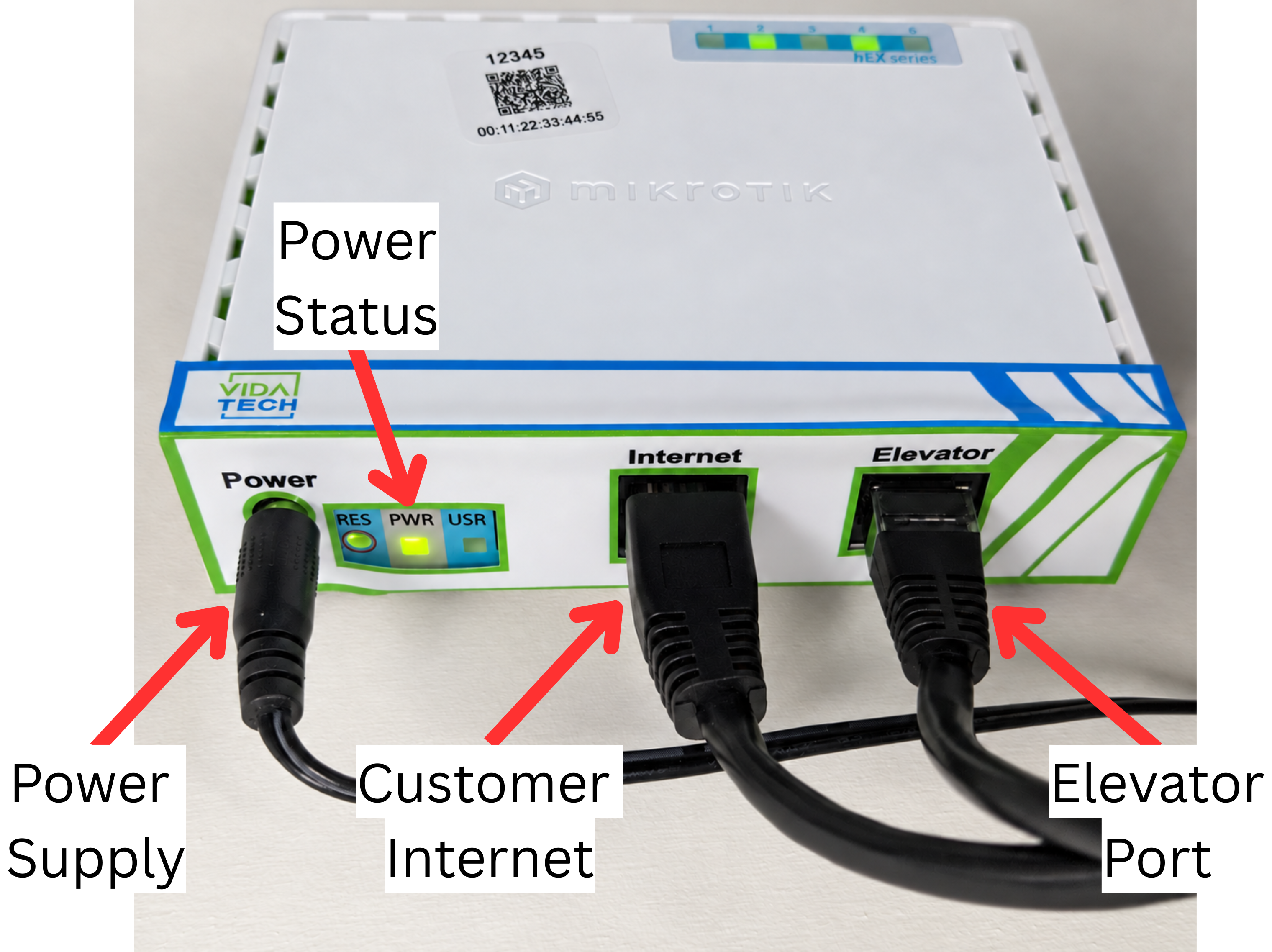
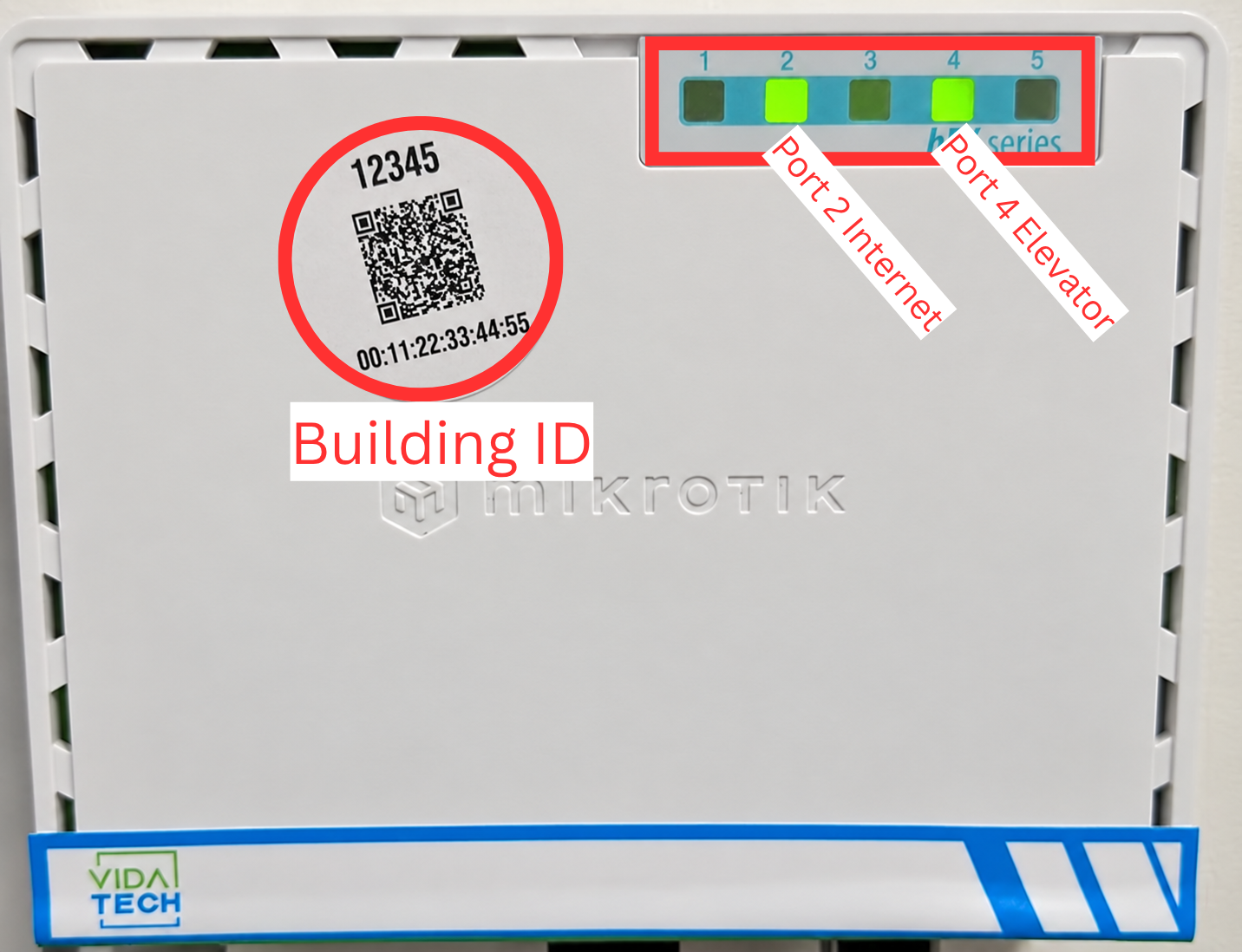
Make sure the router is connected as shown in the LULA Router - Wiring diagram.
-
Internet connection: Port 2
-
Elevator: Port 4
-
Make sure the power connector is securely connected.
2. Verify the router power
Check the PWR LED on the router.
-
The PWR LED must be ON.
-
If the PWR LED is OFF, verify that the power jack is properly connected.
3. Verify the elevator connection
Check the Ethernet connection on Port 4.
-
The Port 4 LED should be ON and green.
-
On the Thunder Emergency Phone, go to Status → Network Status.
Verify that the IPv4 address is not 0.0.0.0.
A valid IPv4 address should look like:
-
10.x.x.x
4. Verify the Internet connection
Check Port 2 on the router.
-
The Port 2 LED should be ON and green.
If the LED is OFF or you are unsure whether the Internet connection is working:
-
Disconnect the Internet cable from the router.
-
Connect the same cable directly to a laptop.
-
Disable Wi-Fi on the laptop.
-
Verify that the laptop can access the Internet.
If the laptop cannot access the Internet, troubleshoot the building's Internet connection before continuing.
5. Factory reset the router
If the previous steps do not resolve the issue, perform a factory reset of the router.
-
Disconnect the router's power jack.
-
Press and hold the RESET button with a pen.
-
While continuing to hold the RESET button, reconnect the power jack.
-
The USR LED will begin flashing. Release the RESET button when the USR LED starts flashing.
-
Wait approximately 2 minutes for the router to complete the factory reset.
-
Verify that the Port 2 and Port 4 LEDs are ON.
-
On the Thunder Emergency Phone, go to Status → Network Status and verify that the IPv4 address is
10.x.x.x.
6. Still experiencing an issue?
If the problem persists after completing these steps, contact Vidatech Technical Support.